How to Connect Instagram to Google Search Console
Google Search Console JUST rolled out a brand-new feature, & I am way too excited about it to keep to myself. 🎉
(I even delayed setting my own profile up just so I could show you a step-by-step walkthrough—bloopers & all!)
You can now add things like your Instagram profile & YouTube channel to Google Search Console as a new "property."
Why Bother Connecting Instagram to GSC?
By adding a new “property” (for now we’ve got Instagram, X, YouTube, & TikTok) to your Google Search Console, you’re able to track data in a whole new way.
You can connect those profiles directly to GSC & start seeing metrics that show you what's happening on that platform AND how it's impacting your visibility online.

Connect Instagram to Google Search Console in 3 Steps
I recorded a full (very short) video walking you through this setup process because I wanted us to figure it out together!
You can click to play the video below or scroll down for typed out instructions.
Step 1: Open Google Search Console
I usually just Google "Google Search Console" & click through from there. On the main screen, click the blue “Start Now” button.
📝 Note: If you're like me with access to multiple profiles (client sites and/or personal accounts), make sure you're logged into AND have selected the right one. Okay, now you may proceed!
Step 2: Add the new property
Click the button with your website name in the upper lefthand corner, then select “Add Property.”
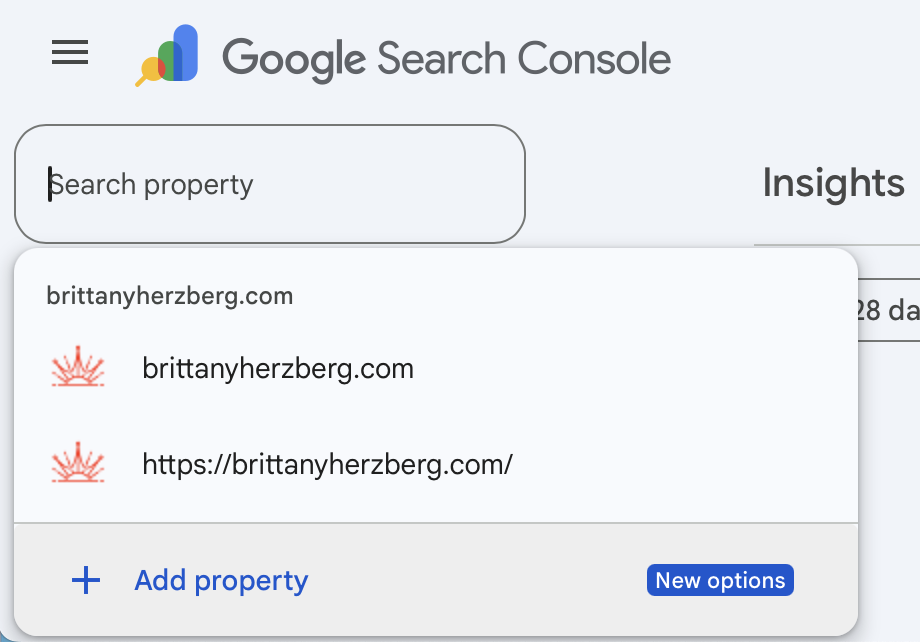
You’ll see this screen first—click “add property” in the bottom left corner
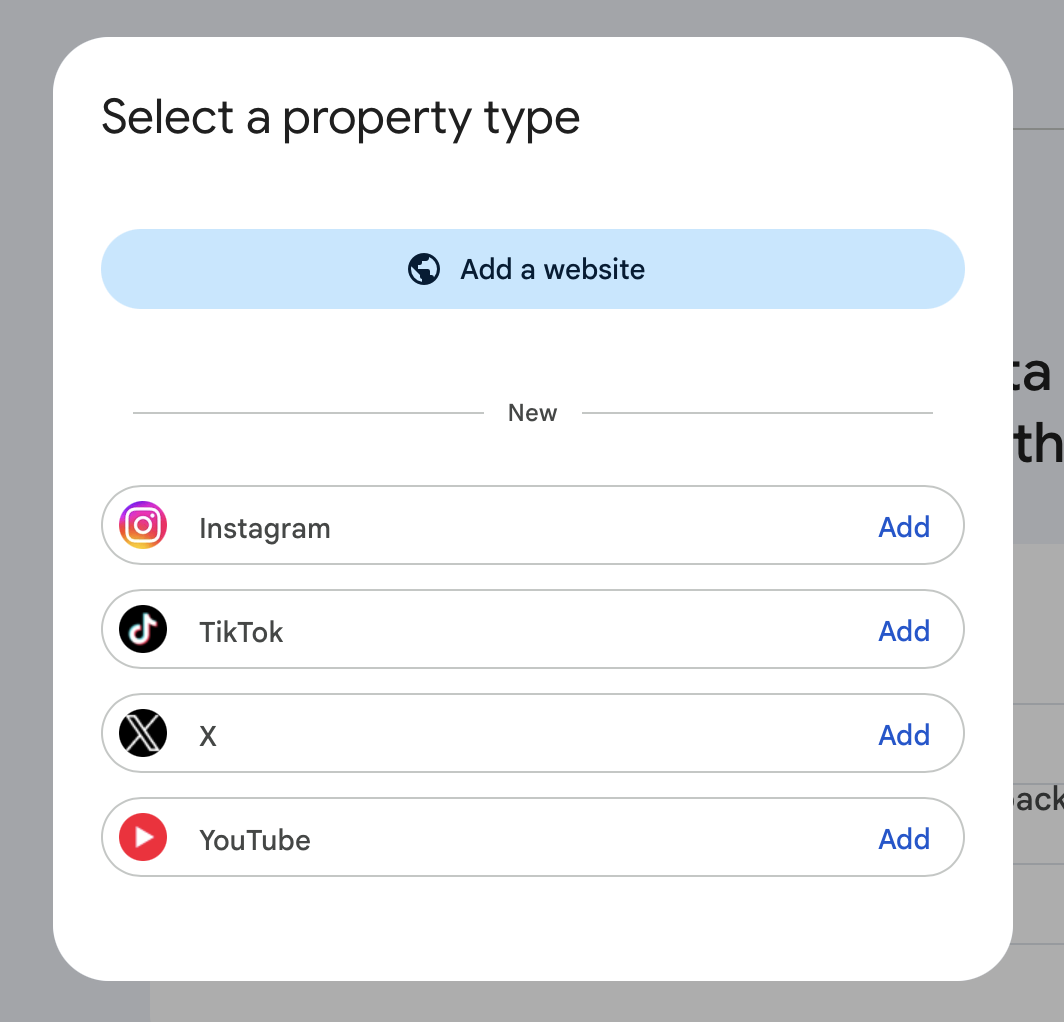
You’ll see this screen next (this is where you select which property you want to add—Instagram, TikTok, X, or YouTube)
Add Instagram
You'll get bumped to a pop up window to log into your Instagram account. Google will text you a verification code (so keep your phone nearby), you'll enter that code, click “Allow,” & your Instagram profile will be added. Done!
Add YouTube
Click the option to add YouTube, select the account you want to connect, hit “Add Property,” & done! (I found it to be easier to add YouTube than Instagram, but Google owns YouTube, so… figures.)
Add TikTok & X
If you have TikTok and/or X profiles, you can also add those. I don’t have them, so I skipped this step.
I imagine more social profiles will be added, but for now we’ve got these four. I’ll take it!
Step 3: What to expect
It's going to take some time for Google to gather enough data before you see anything meaningful. Don't panic if it looks empty at first—that's expected. Give it a beat!
My advice would be to check back in 24-48 hours at the earliest.
How to Make the Most of This New Instagram-Google Connection
For my established entrepreneurs who've built strong Instagram followings (I see you with the thousands of followers & name recognition!), this is a way to finally get data on how that platform is impacting your overall online visibility all in ONE place, snuggled right next to your website data.
This is exactly the kind of thing I nerd out on with my SEO clients! Understanding what's working, so you make decisions based on dataand intuitive nudges (my favorite combo).
First step: get your social media profiles connected to GSC. It takes minutes and the earlier you connect it, the sooner that data starts rolling in.
Let me know how it goes for you. Drop a comment below or say hi on Instagram.
If you haven’t set up your website or your social media profiles with an effective SEO strategy, you’ll want to get on that ASAP!
In my world, we set up your core website pages first—and we do it in just 2 weeks inside my SEO Sprint 🎉
This video gives you a sneak peek of what happens during the sprint! If you have questions before joining, comment below or say hi on Instagram.